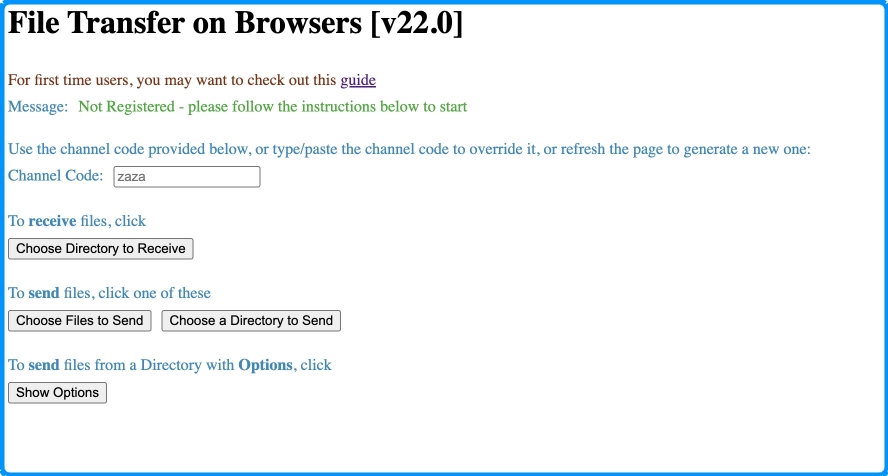
This guide will walk you through with File Transfer on Browsers, a webpage application that lets you transfer files easily across mobile devices, PC computers and laptops.
You can run this webpage application with a Chrome or Edge web browser.
It does not work with other browsers such as Firefox and Safari yet.
Being able to run on a Chrome browser means that it can work on any Android mobile or tablet devices, that has the Chrome browser.
And it can work on any PC computers and laptops because they run the Chrome browser too.
In order to use this application, you should first have a need to transfer files from one device to another.
The device where you want to send the files from, will be the Sender device.
And the device where you want to receive the files, will be the Receiver device.
First, from either the Sender or Receiver device, open the browser and go to the File Transfer on Browsers page. (Actually, you have already done this as you are viewing this guide page now.)
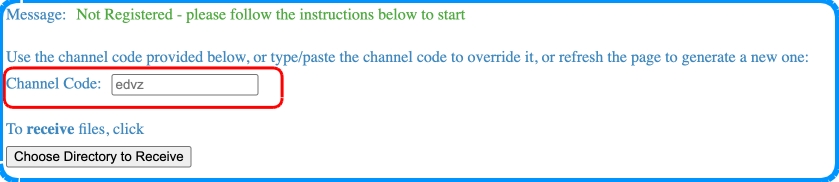
Note first there is a channel code displayed on the page.
You will use the same channel code between the Sender and the Receiver.
If you refresh the page, a new channel code will be generated.
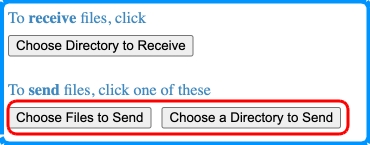
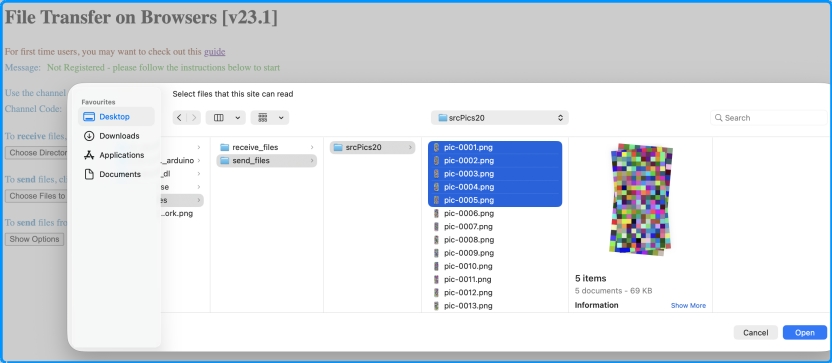
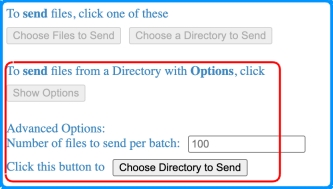
Next, if this device is the Sender, click on either Choose Files to Send or Choose a Directory to Send button.
Depending on which button you click, you will be able to choose multiple files, or a single directory to send.
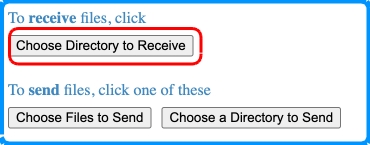
If this device is the Receiver, click on Choose Directory to Receive button.
You will be able to choose a directory to receive the files.
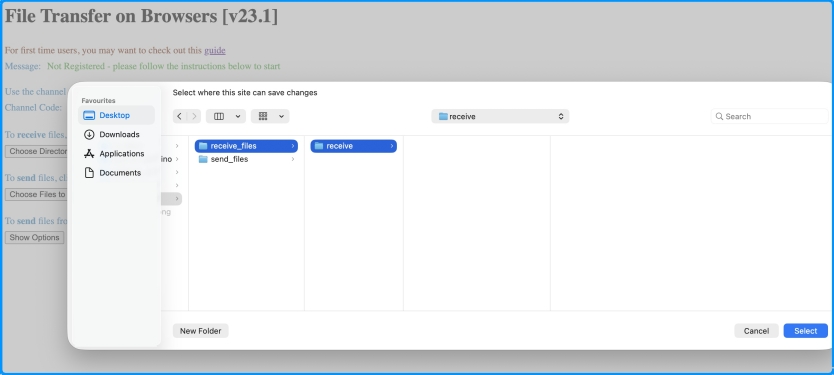
Note: In PC computers and mobile devices, there are some system folders that are not allowed to be chosen as the receive directory.
For example, the "Document" folder on a computer, or the "Whatsapp" folder on a mobile device.
In these cases, you should create a subfolder under the system folder, and then choose the subfolder as the receive directory.
Or, you may choose another folder that is allowed as a receive directory.
Once you picked the files or directory as the Sender or Receiver, note the channel code displayed on the page.
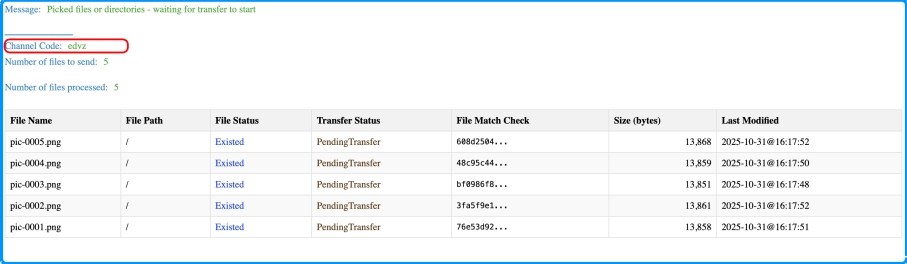
Then, from your other device, open the browser and go to the same File Transfer on Browsers page.
Enter the same channel code in the input field.
Then, choose either the receiver directory, or the sender files or directory. (Which, obviously, should be the opposite of the first device.)
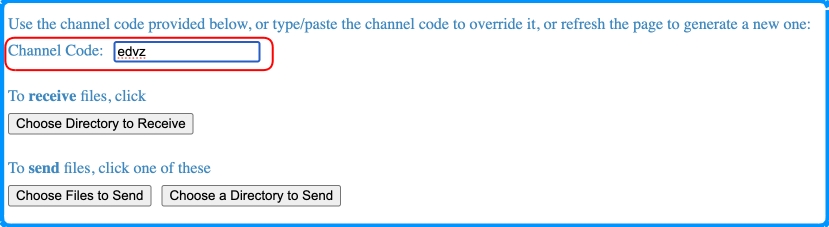
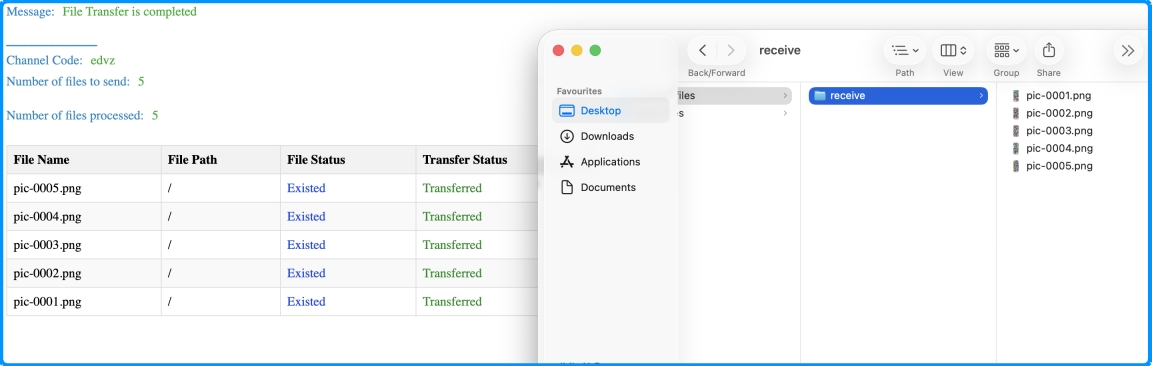
And there you go! You will see the files being transferred from the Sender to the Receiver.
There are more options to explore, and some of them are still under development.
So stay tuned for more updates!
This concludes the guide.
Thank you for using File Transfer on Browsers!